
Statement imports
Bring in supported CSV, PDF and OFX bank or credit-card statements. Layout and institution support varies; review extracted transactions.
Get a clear view of income, spending, upcoming bills and the money available for what matters. Keep account activity connected to the decisions you make.
Follow the Cashflow Pilot tutorials with examples you can check against your own data.
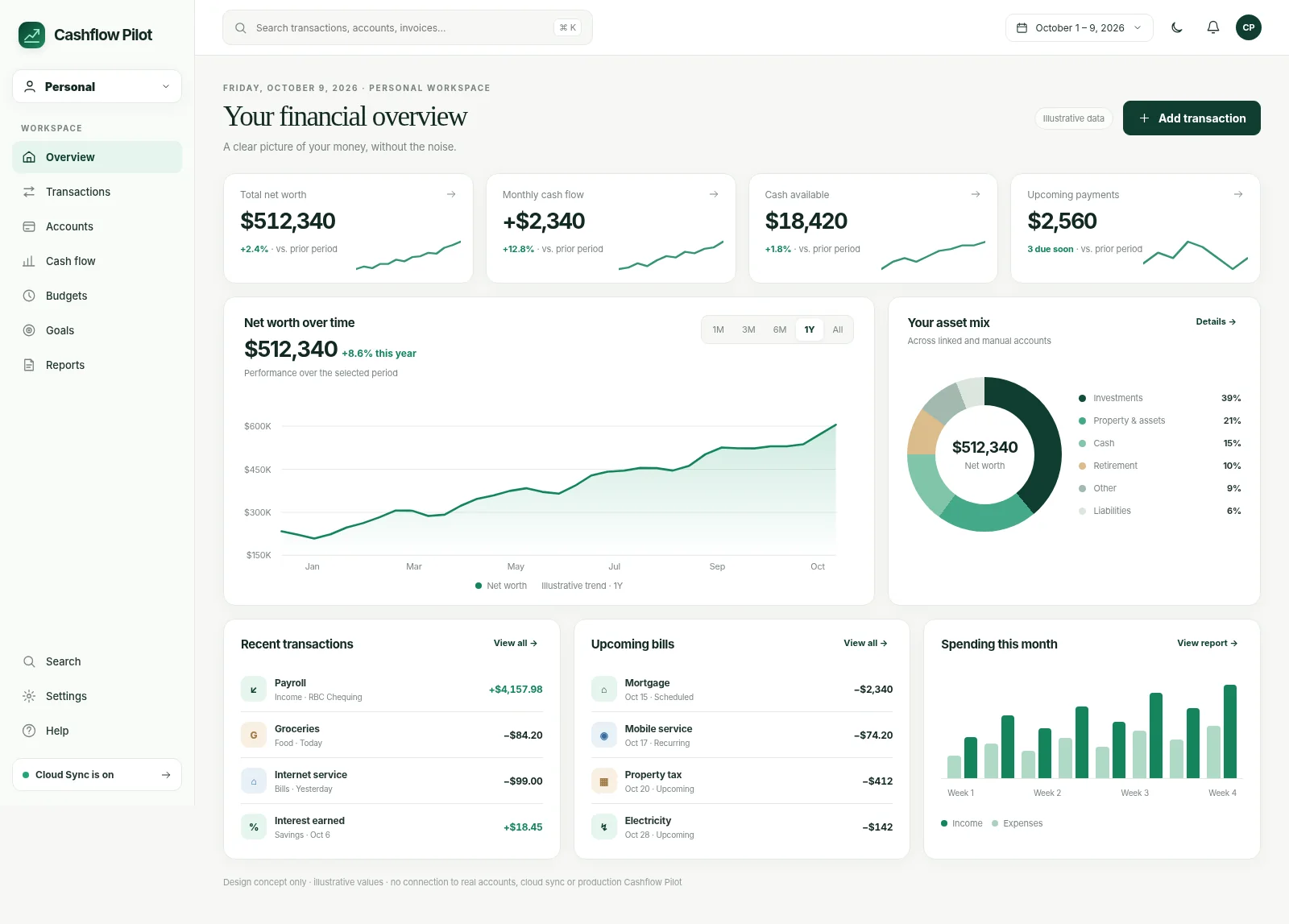
From imported statement to monthly planning: here is where genuine screen captures will help illustrate each stage once available.
The labelled spaces above are not screenshots of the current app. Actual sanitized captures will be added after release and device verification. Until then, use the linked step-by-step guides to explore each workflow.
Import and organize real activity, understand your monthly spending, plan recurring payments, and tune a dashboard around the decisions that matter to you.
Start with transactions you control.
Bring in supported CSV, PDF and OFX bank or credit-card statements. Layout and institution support varies; review extracted transactions.
Organize multiple cash, chequing, savings and credit accounts, then inspect transactions and balances by account.
Where a bank connection option is offered, you may choose to use it instead of manual imports. This is separate from Cloud Sync.
Recognize potential transfers between your accounts and review duplicates before they distort cash flow.
Compare imported activity against statement opening and closing balances and investigate differences.
Turn imported records into useful categories.
Inspect merchant names, descriptions, dates and categories; correct unexpected imports before relying on reports.
Create reusable categorization rules for future activity while avoiding statement-specific dates and other overly narrow text.
Separate money coming in from money going out, track net monthly cash flow and spot category changes.
Compare months, review category breakdowns and identify changes in everyday expenses.
Narrow views by periods and supported accounts so a large transaction history remains manageable.
Budget around your actual financial habits.
Set category amounts and review them beside transaction activity instead of planning from memory.
Follow the funding of categories and available carryover where the chosen budgeting workflow supports it.
Set aside money for larger expenses and measure progress over multiple months.
Keep loans, liabilities and payment commitments in view alongside cash accounts.
Review overspending, underfunded categories and unusual entries before making next-month decisions.
Make the next 30, 60 or 90 days less surprising.
Identify repeating expenses, subscriptions and payments, then review their schedules.
Use recurring pay or other expected inflows as inputs for future cash-flow estimates.
Project expected cash movement from known and recurring activity; outcomes are estimates, not bank-confirmed balances.
Exclude inaccurate repeats, update dates and reconcile amounts when circumstances change.
See expected payments in a forward-looking timeline and plan around clustered due dates.
A dashboard you control, with explicit data choices.
Enable or hide available widgets, rearrange them and keep the layout that works for you.
Use supported financial workflows on your device without first connecting a bank or enabling Cloud Sync.
Register or sign in separately from the decision to synchronize supported records across devices.
Export supported records to an independent file and test restore before a big change.
Review what is local, what is synchronized and which third-party connections are authorized.
Some options depend on your device or the accounts you use. See the full feature table →
A useful financial workspace needs guardrails, not just charts.
Transactions may need categorization, duplicate review or transfer matching. You can inspect and adjust imported activity before relying on reports.
Recurring bills and income sources contribute to the forward-looking cash-flow view. Exclude exceptions that should not recur.
CSV, PDF and OFX are among supported statement paths, depending on the financial institution and layout. Optional bank connections use third-party providers.
No. Statement imports and manual records can be used without handing over banking credentials. Optional third-party connections have their own availability and consent.
No. They are projections based on the information, rules and expected events available in Cashflow Pilot, not guarantees of available bank funds.
Yes. Financial data is local-first and Cloud Sync is optional. Signing in and subscribing to a newsletter are separate choices.
Review potential duplicates and reconciliation differences before accepting the result. Do not assume every institution or statement format can be deduplicated automatically.
Step-by-step help for common tasks and important review checkpoints.
You decide how to use your information, whether to connect a bank, and whether to sync across devices.
Financial records are available on the device. You can start without linking a bank or enabling cloud replication.
Signing in and Cloud Sync are different choices. Turn on Cloud Sync if you want to use supported information on other devices. Not every file or sensitive field is included.
Save a backup so you have a copy if you ever need to restore your information.
Use the workflow that fits your existing data. Bank connections and Cloud Sync are optional, separate choices.
Create your accounts and import supported statements.
Check merchants, categories, duplicates and transfers.
Set targets, recurring activity and obligations.
Export a backup; turn on Cloud Sync only if wanted.
Short guides explain how data enters Cashflow Pilot and what to check before accepting it.
See how to get started, step by step.
Read guide →See how to get started, step by step.
Read guide →See how to get started, step by step.
Read guide →Practical reading on forecasting and categorization.
Explore what the forecast counts, its assumptions and its limits.
Explore →Correct dates, amounts and false patterns that affect projected balances.
Explore →Create rules without accidentally including statement dates or false duplicates.
Explore →Cashflow Pilot has no required app subscription for its current tools. Use one workspace or all three. Improvements keep coming, and you choose whether to connect a bank.
Use Cashflow Pilot locally, then add the workflows and integrations that make sense for you.